FPS Calculator
FPS Calculator: See What Frame Rate Your PC Will Hit
Wondering if that new release will run smoothly or be a slideshow? Tell us what CPU you have, what graphics card, what game you are playing at what resolution. In return you get an estimated frame rate from thousands of real benchmarks so you can stop guessing before you buy a game or a new part.
Your FPS Estimate
Popular Setups
Not Sure of Your Exact Parts? Start With a Common Rig
If you are not sure of every model number, start from one of these common pairings. Tap a setup to load it, then swap in your own processor, graphics card, and game.
How to Use the FPS Calculator
There is nothing technical to figure out here. As long as you know roughly what is inside your machine, you will have an answer in under a minute.
- 1Step 01
Select your processor and graphics card from the two lists. Type in the model and the right one comes into view.
- 2Step 02
Select the game you want to try. Each title has its own performance profile. So the estimate is an estimate of how demanding that particular game is.
- 3Step 03
Change your resolution to 1080p, 1440p or 4K. The higher the resolution, the tougher it is on the graphics card, and that drags the number down.
- 4Step 04
Enable upscaling if you want to play with DLSS, FSR or XeSS. If you leave it off you get the raw native count instead.
- 5Step 05
Then check the estimated frame rate and read the notes underneath, which flag anything worthy of knowing about your particular pairing.
Reading Your FPS Result
A single frame rate doesn’t tell the whole story, so the calculator breaks the result into a few parts. Here is what each one means and how to act on it.
Estimated Average FPS
The headline figure shows the frame rate you can expect across ordinary play, once the action settles into its usual rhythm. Most people read this number first, and the table below translates it into how the game actually feels while you are holding the controller.
| Average FPS | What it feels like |
|---|---|
| Under 30 | Choppy. Playable for slow games, rough for anything fast. |
| 30 to 60 | Fine for story and strategy titles, not for shooters. |
| 60 to 120 | The sweet spot. Smooth and responsive for most games. |
| 120 and up | Competitive-grade, if your monitor can display it. |
1% Low FPS
The 1% low shows the rough spots where the average smooths it all out: a crowded firefight, a wave of enemies pouring in, an explosion filling the screen. A build can have a healthy average and still lurch during those moments if its 1% low drops away, and in fast games that dip often matters.
Native vs Upscaled
When you have upscaling turned off you see a native result, the unprocessed frame rate your hardware produces without any help. Turn on DLSS, FSR or XeSS and the number goes up as the game renders at a lower resolution and fills in the rest to match your screen. Just remember to compare fairly, weighing a native result against another native result rather than against an upscaled one.
Native vs Upscaled:
What the Toggle Changes
Upscaling works by rendering the game at a lower internal resolution and then rebuilding the picture up to your screen size, which is how it delivers a look close to native while spending far fewer frames. Flip it on and your estimate can jump by a wide margin. The catch is that each version has its own hardware home:
- DLSSDLSS runs only on Nvidia RTX cards.
- XeSSXeSS favors Intel Arc while still working elsewhere.
- FSRFSR runs on almost anything, from AMD cards to older Nvidia ones.
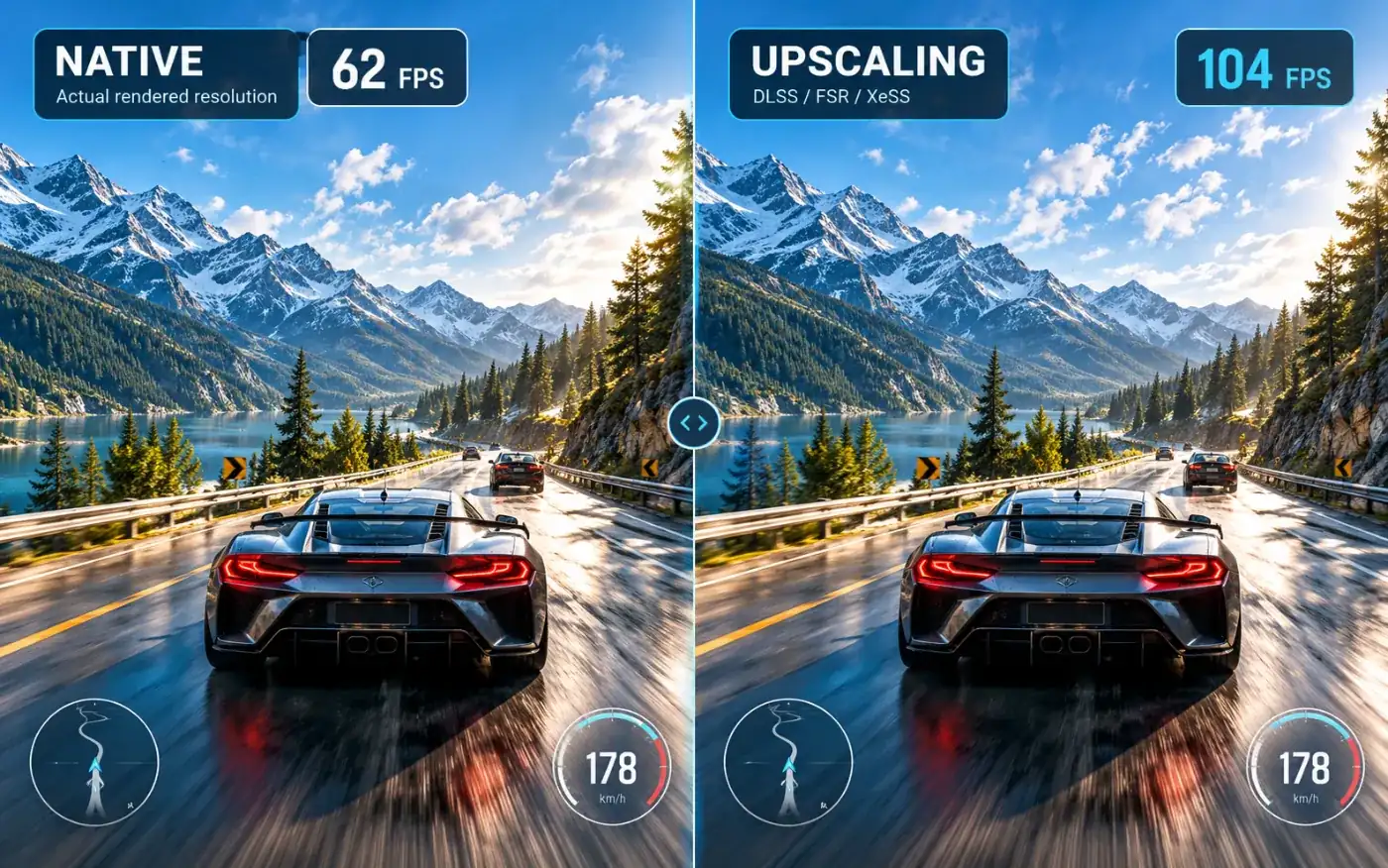
Set the toggle to match what you genuinely intend to play with, because a native figure and an upscaled one are two different measurements and should not be read as the same thing.
What Moves Your Real FPS Away From the Estimate
The reason your frame rate is usually within ten to fifteen percent of the estimate rather than exact is because every estimate assumes a tidy well-behaved system running under near ideal conditions. Most of the difference is due to a few everyday factors.
Background load
A browser stuffed with tabs, a Discord call, or a Windows update chewing through downloads all quietly siphon off frames while you play.
Thermals
When a processor or graphics card runs hot, it eases off its own clocks to cool down, so a cramped or dusty case gives up speed it would otherwise have.
Memory setup
Running a single stick instead of a matched pair, or leaving XMP switched off in the BIOS, quietly trims a slice of performance you paid for.
Game patches and scenes
Some titles are polished to a shine while others ship rough, and even within one game a dense, busy scene demands far more than an empty corridor.
Think of the estimate as a good day ceiling, not a guarantee. If your actual number is significantly lower, it’s almost always one of the above culprits.
On a Laptop? Adjust the Number Down
A laptop part rarely matches the desktop chip it shares a name with. Squeezed into a thin chassis with tighter cooling and a lower power ceiling, a laptop graphics card runs slower than its desktop twin, commonly by anywhere from fifteen to twenty-five percent. So when you check a laptop, pick the desktop equivalent in the tool and shave off roughly twenty percent. The correction is rough around the edges, but it lands far closer to reality than taking the desktop figure at face value.
How Much FPS You Actually Need
Chasing the highest possible number is not always the point. The frame rate worth aiming for really comes down to the kind of game in front of you and the monitor you play it on.
Competitive Shooters
Games like CS2 and Valorant pay you back for every extra frame with quicker, crisper response. Aim for 144 and beyond, and put a high-refresh monitor in front of it so you can actually feel the difference those frames make.
Story and Single-Player Games
A steady 60 carries titles like Cyberpunk and Elden Ring beautifully, since nothing here hinges on split-second reactions. Once you clear that mark, you are better off pouring the spare power into richer visuals than into raw speed you will barely notice.
Strategy and Simulation
City builders and turn-based games feel perfectly comfortable in the 40 to 60 range. You are studying the board and weighing your next move, not tracking a target across the screen, so a stack of extra frames adds very little to the experience.
One point applies whatever you play: any frames above your monitor’s refresh rate are frames it simply cannot show, and pushing past that ceiling can introduce tearing unless G-Sync or FreeSync is smoothing things over.
How the Estimate Is Built
Behind the scenes, the tool scores each CPU and graphics card against a huge pool of real benchmark data and then compares those scores to per-game performance profiles at the resolution you’ve chosen. Every game is measured on its own terms, so a lightweight game and a punishing one can hand back very different numbers from the exact same parts.
As new games, drivers and hardware arrive, the underlying database keeps growing, meaning the estimate for any given setup can change over time as the data behind it fills out.
FAQFAQ
How accurate is the FPS calculator?
For the most part it will be about ten to fifteen percent off from what you would see in the actual game for most setups, with the rest of the disparity being drivers, temps and background apps. This provides a reliable starting point for your planning, not an exact reading of your machine.
Does RAM impact my FPS?
It does, but not as dramatically as the processor or graphics card. A proper dual channel setup and faster memory add a modest margin, often somewhere in the five to ten percent range, and Ryzen chips tend to squeeze a little more out of quick RAM than Intel ones.
Do I trust the native number or the up-scaled number?
Choose the one that fits your actual way of playing. If you run DLSS or FSR in a given game the upscaled figure is the one that matters to you and if you play without them the native number is the honest one to plan around.
Why is my actual FPS lower than the estimate?
The estimate assumes a clean, cool, well-tuned system, so anything working against that pulls your real number down. Background programs, thermal throttling, a rough game patch, or memory quietly running below its rated speed are the usual suspects.
Does a higher FPS always help?
Only as far as your screen can follow. Frames above its refresh rate never make it to the screen, and can actually cause tearing without G-Sync or FreeSync, but below that ceiling, more frames actually means a smoother, more responsive game.
Can I use this to plan an upgrade?
Yes, for sure. And that’s one of the best reasons to use it. Test a few different processor and graphics card combos against your desired frame rate and you’ll quickly see which part makes the biggest difference before you spend a single cent.
Find Your Frame Rate
Choose your parts, pick a game, and watch the number appear in seconds. It is free, there is no account to create, and nothing to wait for.