Bottleneck Calculator:
Find the Part That’s Slowing Your PC
Find out exactly what’s holding your build back — CPU, GPU, or RAM — in 10 seconds. 1,472 CPUs · 522 GPUs · 8 resolutions.
You built or bought a capable PC, yet the frame rate still comes up short and you cannot tell which part is to blame. That mismatch has a name. A bottleneck is what happens when your graphics card and processor fall out of step, so one sits idle while the other struggles, and your performance pays for it. Spotting the culprit by eye is close to impossible, which is exactly what a bottleneck calculator is built to solve.
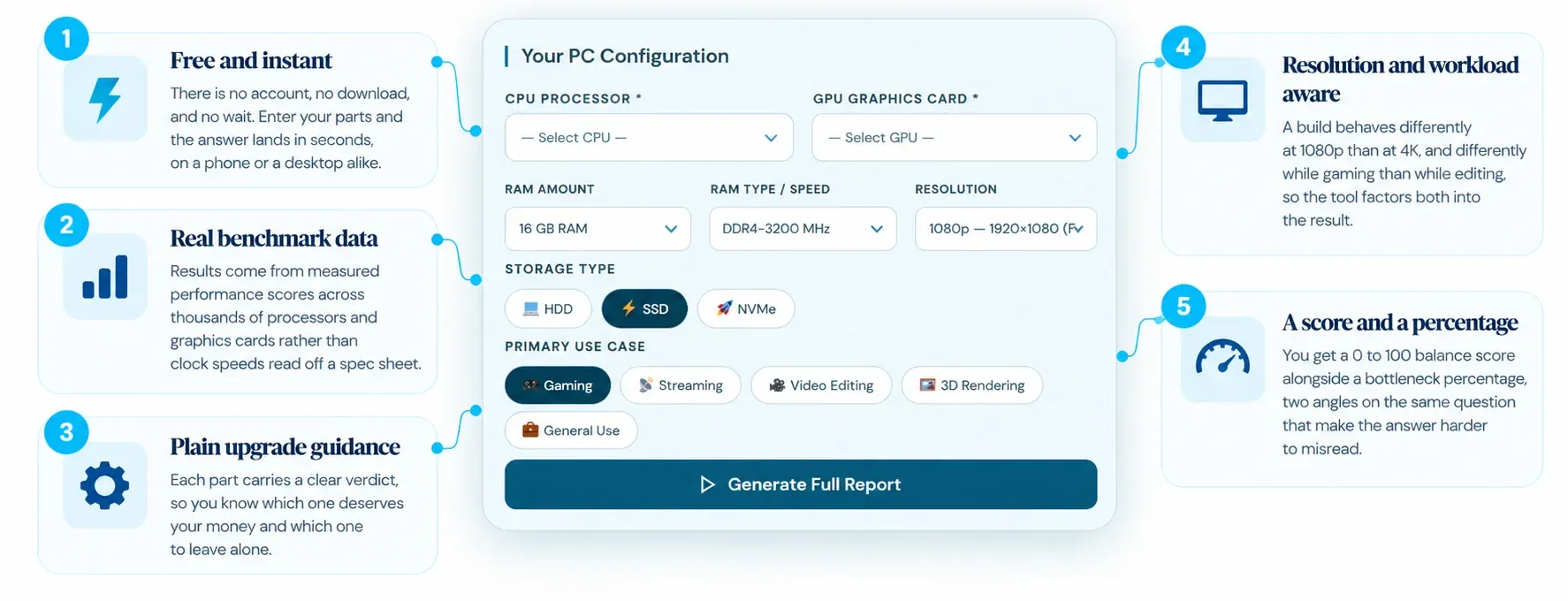
This bottleneck calculator reads your CPU, GPU, memory, and resolution, weighs them using relative hardware performance scores, and estimates which component is likely holding your system back and by how much. Instead of guessing whether you need a new processor, a stronger graphics card, or simply a settings change, you get a clear answer in seconds. Enter your parts above to run the check and see where your build stands.
Popular CPU and GPU Bottleneck Calculator Builds
If you are not sure of your exact specs, start from one of these common CPU and GPU pairings. Tap a build to load it into the bottleneck calculator, then adjust the parts to match your own system.
How to Use the Bottleneck Calculator
There is nothing technical to work out here. If you know your parts, running the bottleneck calculator takes under a minute.
- 1Step 01
Select your CPU and GPU from the drop-down lists.
- 2Step 02
Add your RAM and storage type.
- 3Step 03
Choose how you use the PC: gaming, editing, or general use.
- 4Step 04
Click Generate Full Report.
- 5Step 05
Read the result, explained section by section below.
Reading Your Bottleneck Calculator Results
Your bottleneck calculator results open in a pop-up. Here is what each part tells you and what to do about it. Every figure in the report is an estimate based on relative hardware performance scores, not a measurement taken from your PC.
Score and Balance Label
The balance score runs from 0 to 100 and shows how evenly your CPU and GPU are matched. It is simply 100 minus the bottleneck percentage, so a higher score means a smaller gap between the two parts. The score does not rate how fast or how good your computer is: an entry-level build can score 95 because its parts are evenly matched, while a high-end build can score lower because one part is much stronger than the other.
| Score | What it means | What to do |
|---|---|---|
| 86 to 100 | Balanced | No upgrade needed |
| 76 to 85 | Minor bottleneck | Try settings first; an upgrade is optional |
| 61 to 75 | Moderate bottleneck | Consider upgrading the limiting part |
| 60 and below | Significant bottleneck | Upgrade the limiting part first |
The Bottleneck Percentage
Alongside the score you get a bottleneck percentage, which runs in the opposite direction. It estimates how far the weaker part’s frame-rate ceiling sits below the stronger part’s, so a lower number is better. The percentage is rounded to a whole number and the label always follows the number you see, so 15% is the first value counted as a minor bottleneck.
| Result | What it points to |
|---|---|
| 0% to 14% | Balanced. Nothing worth acting on. |
| 15% to 24% | Minor bottleneck. Usually fixable with settings, not a purchase. |
| 25% to 39% | Moderate bottleneck. One part is clearly holding the other back in many games. |
| 40% or more | Significant bottleneck. The weaker part is capping the build. |
The percentage is an estimate built from an eight-game average, not a measurement of your PC. Different games lean on the CPU and GPU in different ways, so a high number is a reason to look closer, not a reason to buy a part today.
Estimated FPS Ceilings
Below the score, two bars show an estimated frame-rate ceiling for each main part. The CPU ceiling is roughly the highest frame rate your processor could prepare in our test games if the graphics card were never the limit. The GPU ceiling is roughly the highest frame rate your graphics card could draw at your chosen resolution if the processor were never the limit.
A game can only run as fast as the lower of the two, so the part with the lower ceiling is the one holding you back. For example, if a powerful CPU could support about 200 FPS in a game but the GPU could only manage about 60 FPS, the GPU is the limit, and upgrading the CPU alone would change very little until the GPU is addressed.
Resolution changes the picture. A higher resolution gives the graphics card more pixels to draw, so its ceiling falls, while the CPU ceiling stays about the same. That is why the same build can be CPU-limited at 1080p and GPU-limited at 4K.
These ceilings are estimates calculated from relative performance scores, not live readings, and they do not show how busy (utilised) each part is. To see real usage, use an in-game overlay or Task Manager, as described further down this page. The numbers in the example above are illustrative only. RAM and storage get their own separate scores in the report and never decide whether the CPU or GPU is the limit.
Game Performance Estimates
This section estimates your average frame rate in eight popular games at the High preset, rounded to the nearest 5 fps. Each game leans on the CPU and GPU differently, so a build can be GPU-limited in one title and balanced or CPU-limited in another, and every game card shows which way that game leans. As an example, the calculator estimates that a Core Ultra 9 285K with an RTX 5060 Ti and 16GB of memory reaches about 200 fps in Fortnite and about 90 fps in Cyberpunk 2077 at 1080p. These are model estimates, not benchmarks, so real results will vary with your settings, drivers, and the scene you play.
Upgrade Recommendations
Each part gets a verdict so you know where money is worth spending. When the gap is small, the report marks an upgrade as optional and suggests trying settings first. Top Priority only appears for a moderate or significant bottleneck and marks the part to replace first. Treat these as suggestions based on estimates, and check real benchmarks for the games you play before you buy.
What Is a Bottleneck in a Computer System?
A bottleneck is the component that cannot keep pace with the rest of the system, so it caps overall performance no matter how strong the other parts are. The name borrows from the narrow neck of a bottle, where the flow is limited by the tightest point rather than the width of the container. A single slow part sets the ceiling for everything else.
In a gaming PC the two components most often involved are the processor and the graphics card. When one finishes its share of the work and waits on the other, that idle time surfaces as lower frames, stutter, or a machine that performs below what its price suggests. Every build has a weakest link somewhere, so a small bottleneck is normal and not a cause for concern. The aim is not to reach zero but to keep the gap small enough that it never affects how the system feels.
What Is a Bottleneck Calculator?
A bottleneck calculator is a tool that compares the parts in your build and tells you which one is holding the others back, without you having to open the case or run a single game. You enter your processor, graphics card, memory, resolution, and main workload, and the bottleneck calculator weighs those parts using relative hardware performance scores to estimate where the slowdown sits and how large it is.
No calculator can promise an exact frame count for your specific room, settings, and game. What a reliable one provides is a grounded estimate of which part is the weak link and whether it is worth acting on. It answers the question every builder eventually faces, whether to upgrade and which part to prioritize, before any money leaves the account.
Why this toolFeatures of Our PC Bottleneck Calculator
A dependable bottleneck calculator earns trust through the data behind it and the clarity of what it returns. This tool is built on both.
Signs and Causes of a PC Bottleneck
A bottleneck usually announces itself as a nagging sense that the machine should run better than it does, with performance that falls short of what the parts cost. A handful of consistent symptoms separate a real imbalance from a component that has simply failed.
- Frame rates that sit lower than reviews of the same parts led you to expect.
- Stutter or hitching in busy moments, even when the average frame rate looks fine.
- One component pinned near 100 percent while the other coasts far below it.
- Little or no gain from lowering graphics settings, a classic sign the processor is the ceiling.
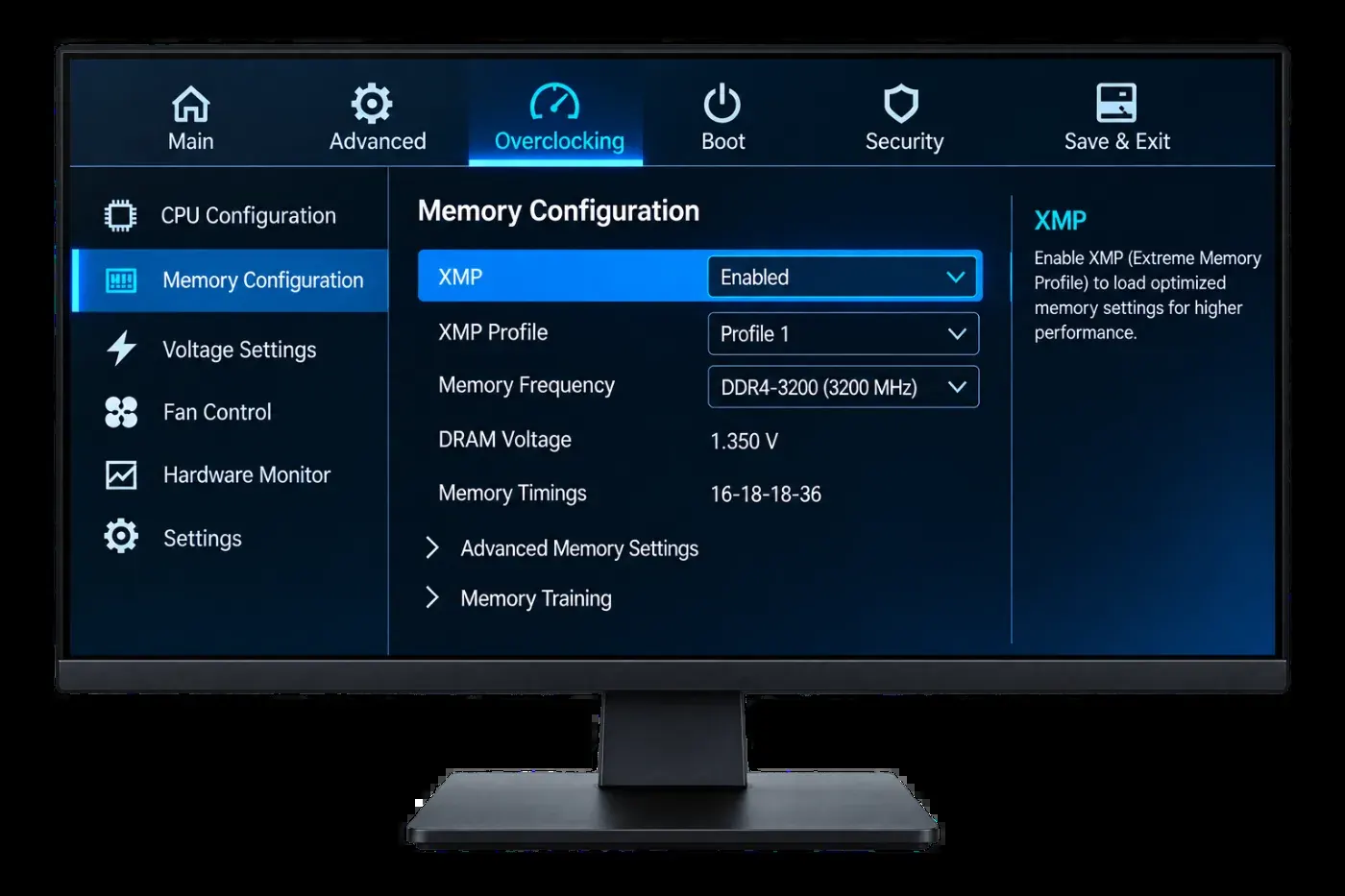
The causes usually trace back to balance rather than any single faulty part. A powerful graphics card paired with an older processor is the most common culprit, since the card keeps waiting for data the chip cannot deliver fast enough. Running memory below its rated speed, leaving XMP or EXPO switched off, a slow hard drive feeding a fast system, or simply playing at a resolution that leans hard on the weaker part can all tip a build out of balance.
Types of PC Bottleneck: CPU, GPU, RAM, and Storage
A bottleneck can come from any of four parts. Each type shows itself differently and each has its own quick fix, so knowing which one the bottleneck calculator flags points you straight at the answer.
CPU Bottleneck
Processor is the limitA CPU bottleneck appears when your processor runs at or near full load while the graphics card coasts below 80 percent. Frames feel inconsistent even in simple scenes, and busy moments with many characters or heavy physics drag the most. It is the common case at 1080p and in strategy, simulation, and older DirectX 11 titles.
GPU Bottleneck
Graphics card is the limitA GPU bottleneck means the graphics card sits at 95 to 100 percent while the processor has room to spare. For most gaming this is the healthy state, since the card is the part you want working hardest. If the frame rate still falls short here, the load has simply outrun the card.
RAM Bottleneck
Memory is the limitMemory becomes the limit when there is too little of it or it runs too slowly. The tell is stutter and long load times while both the processor and graphics card read normal, because the system is waiting on data rather than raw compute.
Storage Bottleneck
Drive is the limitA slow drive rarely caps your frame rate, but it throttles everything around the game. Long loading screens, textures that pop in late, and a system slow to wake all points at storage rather than the processor or card.
Real-World PC Bottleneck Examples
A bottleneck is easiest to understand when you watch it play out in a real build. The following examples show how the same principle surfaces across different components and workloads, and how a bottleneck calculator would flag each one.
A Fast Card Held Back at 1080p
A builder pairs a new RTX 4070 with an ageing quad-core processor and plays at 1080p. The frame rate lands well under the reviews, and the card sits at 60 percent while the processor pins at 100. Dropping the graphics settings changes nothing, the giveaway that the chip is the ceiling. A processor upgrade, not a second graphics card, is what frees the build.
The Architect’s Slow Drive
A designer with a strong processor and plenty of memory still waits ages for large project files to open. The parts that render the work are more than capable, but an old mechanical hard drive feeds them slowly. Swapping to an NVMe SSD turns minute-long loads into seconds, with no change to the processor or graphics card at all.
Balanced on Paper, Stuttering in Play
A build looks well matched by score, yet games hitch every time a new area loads. Both main parts read normal during the stutter, which rules them out. The cause is a single stick of memory running below its rated speed, and enabling XMP with a matched pair smooths the play out for the price of a BIOS toggle.
How to Check Your Bottleneck Without the Calculator
A bottleneck calculator points you in a direction. These two checks tell you whether it is right for your actual games. Neither needs paid software.
Read Your Cores, Not the Average
Open Task Manager, go to Performance, right-click the CPU graph, and switch to logical processors. Most games lean hard on one main thread, so a single core can sit pinned at 100 percent while the overall number reads 50. That average hides the bottleneck. If one core is maxed and your GPU is under 80 percent during play, your processor is the ceiling. HWiNFO shows the same detail with more history if you want a closer look.
Drop the Resolution and Watch the Frames
Lower the game from 1440p to 1080p, or from 1080p down a step, and keep playing the same scene. If your frame rate climbs, the graphics card was the limit and lowering the load freed it. If the frame rate barely moves, the processor is doing all it can and no amount of graphics tuning will help. This one test settles most arguments a calculator starts.
How to Fix a Bottleneck Before You Buy Anything
The type of bottleneck tells you which part to lean on, yet most complaints clear without spending a cent. Work down this list in order and stop when the stutter goes away.
- Turn on XMP or EXPO in your BIOS so your memory runs at its rated speed instead of a slow default.
- Close the background load from browser tabs, Discord overlays, launchers, and sync tools, since all of them eat resources.
- Set the game to High priority in the Details tab of Task Manager.
- Update your graphics driver, chipset, and BIOS, since newer versions often smooth out how work is shared.
- Match your settings to the weaker part, lightening graphics settings for a tired card or draw distance and crowd density for a tired processor.
Only after these run out should a new part enter the conversation. When it does, the type of bottleneck above tells you exactly which one to buy.
When It Is Not Really a Bottleneck
Low GPU usage does not always mean a weak processor. Several ordinary settings produce the same reading and send people chasing the wrong fix.
Frame cap or V-Sync
A frame cap or V-Sync limit holds the GPU below its ceiling on purpose. It looks idle because you told it to be.
Thermal throttling
Thermal throttling pulls clocks back when a part runs hot, which drops usage without any component being outmatched.
Shader compilation
Shader compilation early in a session spikes the CPU for a minute, then clears on its own.
Background use
A background download or a second app quietly using the card can skew what you see.
Rule these out before you trust a high bottleneck number. A calculator cannot see your temperatures, your frame cap, or what else is running.
How Resolution Changes Your Bottleneck
The same build can read CPU-bound at one resolution and GPU-bound at another. At 1080p the graphics card finishes each frame quickly and waits on the processor, so the CPU sets the pace. At 4K the card has far more pixels to draw, the workload shifts onto it, and the processor stops being the limit. This is why the resolution selector matters in the tool above. Run your check at the resolution you actually play, not the one on the box.
Bottleneck Calculator Results by Use Case
Your workload decides which part gets stressed. The bottleneck calculator adjusts for this, and so should your reading of the result.
Gaming
Fast shooters and open worlds lean on both parts. Strategy and simulation titles push the processor hardest, so a CPU gap shows up here first.
Streaming While Gaming
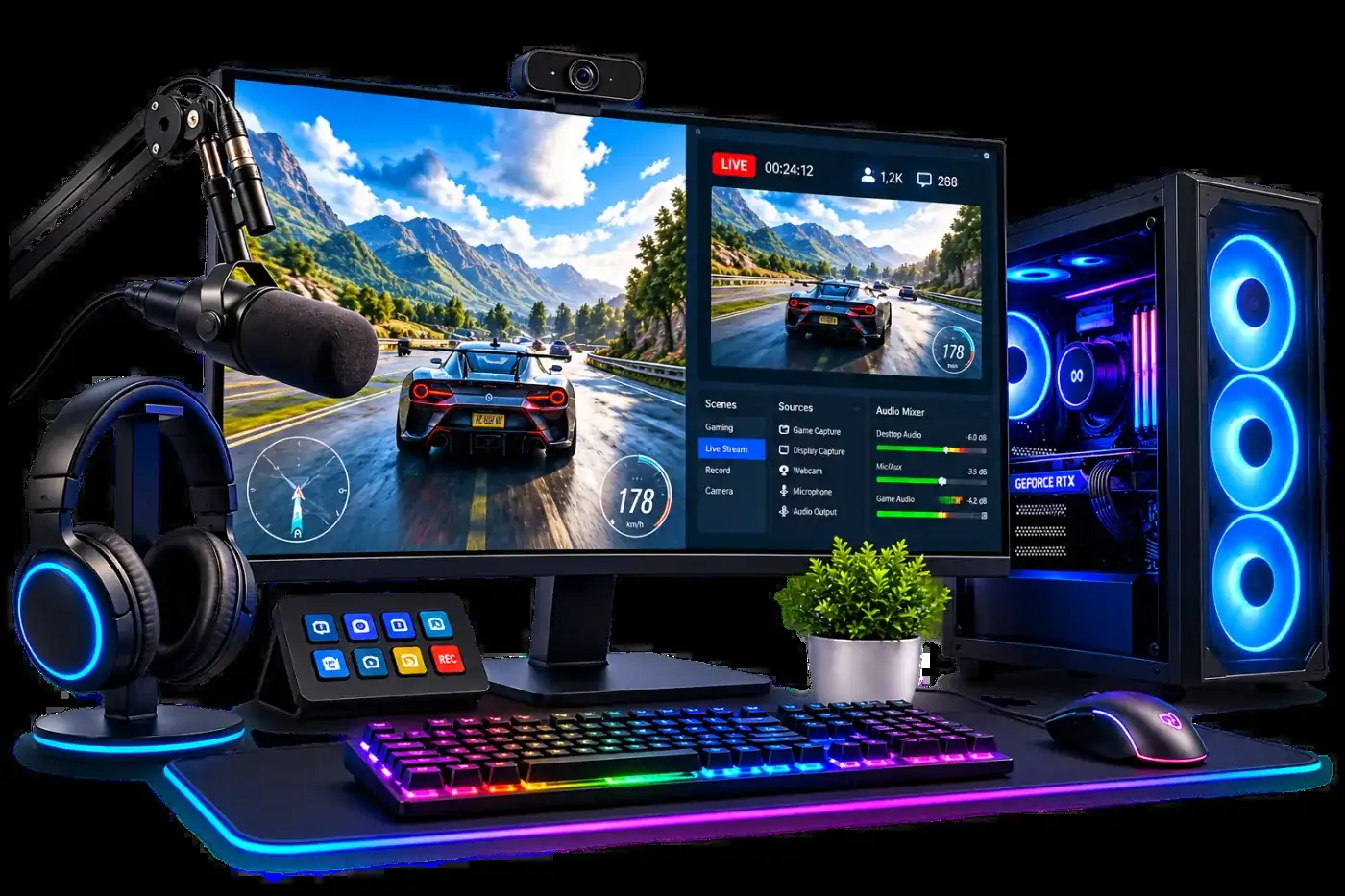
Encoding the stream adds load to the processor on top of the game. Switching to hardware encoding, NVENC on Nvidia or AMF on AMD, moves that work off the CPU and often clears dropped frames without new parts.
Video Editing and Rendering
The timeline, encoding, and export lean on the processor, while real-time preview in tools like Premiere Pro and DaVinci Resolve lean on the graphics card. A gap in either one shows up as longer waits.
Everyday Use
Browsing and office work rarely stress either part. If a light system still feels slow, memory or storage is the more likely cause.
FAQ
What is a good bottleneck percentage?
Anything from 0 to 14 percent counts as balanced and needs no action. Between 15 and 24 percent is a minor bottleneck that usually clears with settings. From 25 percent upward is worth a closer look, and 40 percent or more means one part is clearly capping the build. These are estimates, so confirm them in the games you play.
Is a 10 percent bottleneck bad?
No. In this calculator anything under 15 percent counts as balanced. Every pairing has some imbalance, and a gap that small is unlikely to be noticeable in most games.
Do bottleneck calculators actually work?
They give a useful estimate of how well two parts match, but they cannot measure your real frames, temperatures, or settings. Treat the result as a starting point and confirm it with the two checks above.
Should I upgrade the CPU or GPU first?
Whichever your result flags as the limit at the resolution you play. If you are CPU-bound at 1080p, the processor comes first. If you are GPU-bound at 4K, the graphics card does.
Does RAM cause bottlenecks?
It can. Slow or insufficient memory causes stutter and long load times while both the CPU and GPU look normal. Turning on XMP or EXPO fixes the most common version of this for free.
Can you fix a bottleneck without upgrading?
Often, yes. Enabling rated memory speed, closing background apps, setting process priority, and adjusting settings recover performance many people assume they have to buy their way out of.
Run the Bottleneck Calculator Now
Pick your parts, choose your resolution, and get a bottleneck calculator reading in seconds. Free, no account, no wait.